Project Management with Excel: Features, Limitations, and Professional Alternatives

Many project managers rely on Excel for their day-to-day project planning, using task lists, schedules, and Gantt charts. Understandably, Excel remains the most widely used project management tool among small and medium-sized businesses, but its limitations quickly become apparent. The problems don’t arise with small, individual projects involving just two people; they emerge when teams grow and projects become more complex. Research by spreadsheet expert Prof. Ray Panko of the University of Hawaii shows that 88% of all spreadsheets contain errors, a risk that grows exponentially as the volume of data and the number of users increase.
The causes of this failure are structural in nature: a lack of real-time collaboration, no automated resource planning, a lack of visibility in multi-project management, and a high risk of errors due to manual data maintenance. The range of solutions extends from simple task management tools to professional project management software with portfolio management and workflow automation, all the way to hybrid systems that combine traditional and agile methods in a single platform. Whether a switch makes sense depends on the number of projects, team size, and specific management requirements. Professional PM software delivers exactly the transparency and automation that Excel is structurally unable to offer.
Table of Contents
- What Is Project Management with Excel?
- Why Does Project Management Using Excel Reach Its Limits?
- What Problems Does Using Excel for Project Management Cause in Companies?
- How Do Excel and Professional Project Management Software Differ?
- What Are Some Alternatives to Project Management Using Excel?
- Conclusion on Project Management with Excel: It’s Possible, but It’s No Substitute for Real Project Management Software
- Frequently Asked Questions about Project Management with Excel
What Is Project Management with Excel?
Excel is a spreadsheet program that is used by many teams as their primary tool for project planning. Typical uses include task lists, schedules, budget overviews, and simple Gantt charts. However, Excel is not a dedicated project management tool, but rather a general-purpose tool that is adapted and repurposed for project management purposes.
To get the full picture, it’s worth taking a closer look at four aspects: the basic mechanics of project management in Excel, the advantages of its availability and flexibility, the disadvantages stemming from a lack of team collaboration and manual maintenance, and the role of templates in streamlining work. Terms such as project plan, Gantt chart, and task management are central to understanding what Excel can do and where its limitations lie.
How Does Project Management with Excel Work?
Project management in Excel mainly relies on manually created table structures. Project managers create columns for tasks, start and end dates, status, priorities, and responsible parties. The individual elements are linked through formulas, conditional formatting, and manual updates.
The three most common use cases can be described as follows. First, the to-do list as the simplest form: it lists tasks, responsibilities, and status, and serves as the basis for any project managed in Excel. It’s quick to set up for structured task management but soon reaches its limits with more complex dependencies. Second, the project plan with milestones, dependencies, and a timeline, which sets the framework for the entire project. Third, the Gantt chart, recreated in Excel using stacked bar charts to give a visual overview of the schedule.
What Are the benefits of Using Excel in Project Management?
Despite its limitations, Excel offers tangible benefits that explain why it stubbornly remains the tool of choice for project management in many companies. These benefits are particularly relevant for small teams and simple projects where the requirements remain manageable.
- High availability: Excel is installed on nearly every office computer and requires no additional software purchases. Projects can be launched without delays caused by procurement or approval processes.
- Familiarity: Most employees are already familiar with Excel from other contexts and require no training. This significantly lowers the barrier to adoption.
- Flexibility: Spreadsheets, charts, and formulas can be customized to meet specific project requirements. There is no predefined structure that restricts processes.
- Sense of control and self-efficacy: Excel gives users the feeling of having full control over their planning. Anyone who has built a spreadsheet themselves fully understands it and can reshape it to fit their own needs at any time. Especially in established organizations, this autonomy is a crucial psychological factor.
- Low initial costs: If Microsoft Office is already licensed within the company, there are no additional costs for Excel. This makes it a seemingly cost-effective solution.
- Quick start: A simple project plan can be created in Excel within minutes, with no configuration, IT involvement, or training required.
Anyone who has built a spreadsheet themselves fully understands it and can modify it at any time. This sense of autonomy is invaluable in day-to-day project work, especially when processes change frequently. It gives users a sense of control that many would not want to miss out on.
What Are the Disadvantages of Project Management in Excel?
The disadvantages of managing projects in Excel become far more noticeable as projects become more complex and teams get bigger. In practice, these weaknesses are the deciding factor behind the switch to professional project management software.
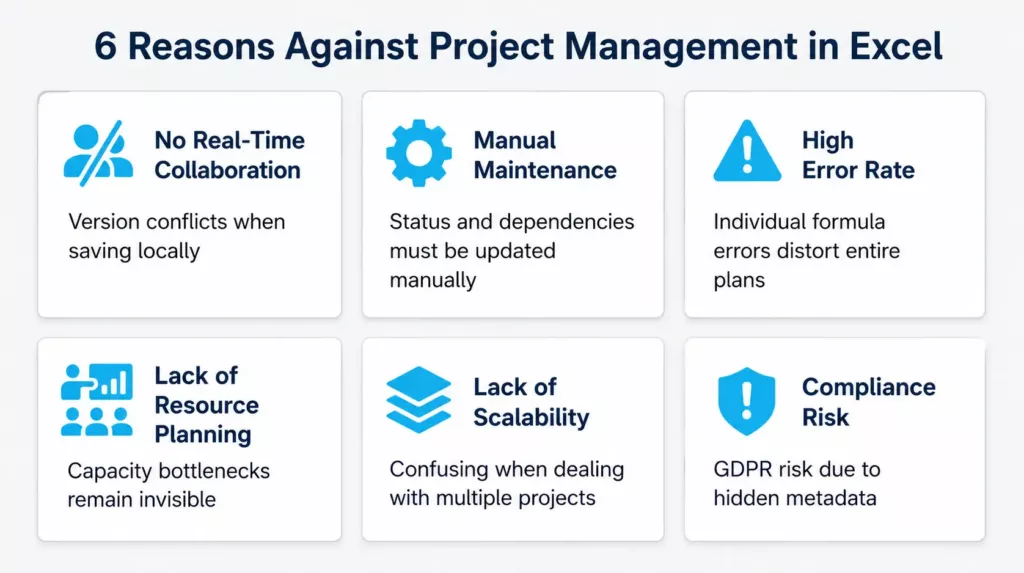
- No real-time collaboration: Excel files are stored locally, and changes are not automatically synced with all collaborators. Version conflicts are the inevitable result whenever multiple people work on a single file.
- Lack of automation: Status updates, notifications, and dependencies must be maintained manually. Every update requires active intervention by the project manager.
- Prone to errors: A single formula error or an accidentally overwritten cell can distort entire project plans. Efficient resource planning in project management requires a reliable data foundation, which Excel cannot reliably provide.
- No integrated resource planning: Excel offers no function to automatically depict employee utilization across multiple projects. Capacity bottlenecks remain hidden.
- Lack of scalability: With more than two or three parallel projects, Excel becomes cluttered and does not allow for centralized portfolio management. Added to this is an often underestimated compliance risk: Excel files frequently contain hidden metadata or hidden worksheets with personal data. The Bavarian State Office for Data Protection Supervision expressly warns that the careless sending of such files can quickly lead to data breaches subject to reporting under the GDPR.
Are There Excel Templates for Project Management?
Yes, there are numerous project management templates for Excel, both paid and free versions. These templates make it much easier to get started by providing pre-built structures for project plans, Gantt charts, and task lists that would otherwise have to be created manually.
Why Does Project Management Using Excel Reach Its Limits?
A single, manageable project with a small team can still be effectively managed in Excel. However, as soon as companies need to manage multiple projects simultaneously, plan resources across departments, or keep stakeholders informed in real time, the structural limitations of using Excel as a project management tool become unmistakably apparent. What initially serves as a practical makeshift solution eventually becomes a bottleneck.
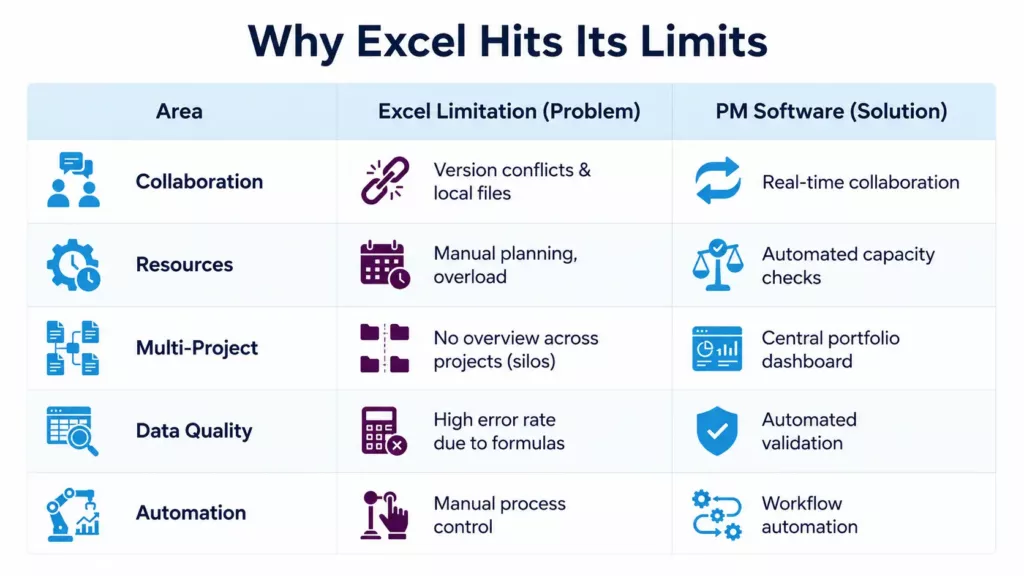
The five key weaknesses that push Excel to its structural limits as a PM tool can be clearly identified: lack of real-time team collaboration, no automated resource planning, limited visibility across multiple concurrent projects, high susceptibility to errors due to manual data maintenance, and limited automation without workflow support. Anyone aware of these limitations will also understand why it’s worth looking at the benefits of specialized multiproject management software. The following sections examine each of these limitations in detail:
- Lack of Real-Time Collaboration within the Team
- No Automated Resource Planning
- Lack of Visibility across Multiple Projects
- High Susceptibility of Errors Due to Manual Data Maintenance
- Limited Automation and Lack of Workflows
1. Lack of Real-Time Collaboration within the Team
Excel files are typically stored locally or distributed via email. When multiple team members work on the project plan at the same time, different file versions inevitably arise. Version conflicts are not an exception in this setup, but rather a structural problem.
This scenario is a familiar one from everyday project work. Two project team members update the same project plan independently of each other: one adds a new task, the other changes deadlines. When the files are merged, changes are lost or silently overwritten. The project manager works with outdated data without realizing it.
The consequences are serious: decisions are based on outdated information, tasks are duplicated or forgotten, and communication within the team becomes inefficient. What professional PM software treats as a given through real-time collaboration remains a persistent coordination problem in Excel.
2. No Automated Resource Planning
Excel does not offer a feature that automatically tracks employee availability and utilization. In practice, resource planning in Excel means manually maintaining capacity tables, with no automatic detection of overloads and no synchronization between different projects.
A typical scenario: An employee is scheduled for three projects at the same time. In each Excel file, they appear to have full capacity because the tables are not linked to one another. The resource bottleneck only becomes apparent when deadlines are already at risk and countermeasures are barely effective. Those who wish to delve deeper into the issue will find concrete strategies for structurally resolving such conflicts in the article on optimizing resource planning in multiproject management.
3. Lack of Visibility across Multiple Projects
In Excel, each project is typically kept in its own file or worksheet. A cross-project overview, a true form of multi-project management, simply doesn’t exist. The project manager has to switch between files manually and painstakingly compile the information.
With ten concurrent projects, this means ten separate Excel files with different structures, different update statuses, and different people responsible. A simple question like “Which projects are currently behind schedule?” requires manually working through every file before an answer is even possible.
Strategic decisions regarding project priorities, budget allocation, and resource assignment are hard to ground properly without a central overview. This is exactly where the conceptual strengths of multi-project management and portfolio management lie, disciplines that Excel is structurally unable to represent. Understanding the difference between multiproject management and portfolio management is crucial for making informed decisions.
4. High Susceptibility of Errors Due to Manual Data Maintenance
Every entry in Excel is made manually, from updating tasks to calculating budgets. As a result, formula references can be silently broken by accidental overwriting, deleted rows, or copy-paste errors, all without any automatic warning appearing.
Here’s a scenario that occurs more frequently in practice than expected: a team member moves a row in the project plan and, in doing so, breaks the formulas in the budget column. The error goes unnoticed for weeks because there is no automatic validation. The project appears to be within budget, even though the actual costs have already been exceeded.
Faulty project data leads directly to wrong decisions. Budget overruns, unrealistic schedules, and undetected risks are typical consequences of data maintenance that relies entirely on human diligence, with no technical safety net.
5. Limited automation and lack of workflows
What Problems Does Excel-Based Project Management Cause for Companies?
The technical limitations of Excel, such as no collaboration, manual maintenance, and no automation, are not abstract IT problems. They have a direct impact on business success. The consequences go far beyond mere inconvenience and can cause measurable financial losses, especially in companies that manage multiple projects simultaneously with limited resources.
Three key business risks converge here in particular: schedule delays due to a lack of real-time data, projects being jeopardized by a lack of transparency, and rising costs due to inefficient processes. All three are directly linked to the structural weaknesses inherent in Excel as a project management tool.
Does Using Excel for Project Management Lead to Delays?
Can a Lack of Transparency in Excel Spreadsheets Jeopardize Projects?
Yes. Excel spreadsheets do not provide a centralized, up-to-date view of the project status. Each participant sees only their own version of the file; there is no shared overview that everyone can access.
This lack of transparency manifests itself in three ways: first, there is no overview of the current completion status of all tasks; no one can tell at a glance where the project stands. Second, there is no early warning system for impending missed deadlines or budget overruns, which are only detected when countermeasures are barely effective anymore. Third, stakeholders and management cannot independently check the project status but are permanently reliant on manual status reports, which in turn take time and may be outdated. The systematic identification of project risks requires a transparent data foundation, which Excel does not reliably provide.
Risks are identified too late, decisions are based on outdated data, and stakeholders’ confidence in project management erodes. Transparency is not a luxury; it is the foundation of sound management.
Does Excel-Based Project Management Lead to Higher Costs?
Yes, but with some nuance. Although Excel itself is inexpensive, Excel-based project management incurs hidden costs that can ultimately make this supposedly cost-effective solution more expensive than professional PM software.
Three key cost drivers are particularly relevant here: first, the significant time required for manual data maintenance, status reports, and coordination loops, which distract project team members from their actual work. Second, the costs resulting from poor decisions based on flawed or outdated data, such as incorrect budget calculations that are only noticed late in the process. Third, the indirect costs resulting from schedule delays, rework, and misallocation of resources, which elude proper project control because the data foundation is unreliable. When business departments independently use tools like Excel as a substitute for dedicated software, shadow IT also arises: according to Gartner, 30 to 40 percent of IT spending in large companies is attributable to such unplanned parallel solutions, with massive hidden costs and security risks.
Excel may be sufficient for a single small project. However, with three or more parallel projects or team sizes of ten or more people, the hidden costs typically far exceed the licensing costs of dedicated PM software.
How Do Excel and Professional Project Management Software Differ?
The comparison between Excel and professional project management software is not an either/or situation, but rather a matter of requirements. Excel is a spreadsheet program that is adapted for project management purposes. Professional project management software, on the other hand, was developed from the ground up for project planning, management, and control, and offers features that cannot be structurally replicated in Excel.
Three aspects are particularly crucial here: the specific functional differences between the two approaches, the criteria for determining the right time to switch, and the relevant selection criteria for the appropriate project management software. Understanding these aspects makes it possible to reach an informed decision.
What Features Does PM Software Offer That Excel Does Not?
Professional project management software offers capabilities in five key functional areas that Excel simply cannot support structurally. These are not merely convenience features, but core functions critical to project management that determine whether a project succeeds or fails.
| Functional area | Excel | PM Software |
|---|---|---|
| Real-time collaboration | No concurrent editing, version conflicts | Everyone involved works with the same data in real time |
| Resource Planning | Manual capacity tables without project links | Automatic capacity overview across all projects |
| Multi-project management | Separate files for each project, no portfolio overview | Centralized management of all projects, including dependencies and priorities |
| Automation | This is only possible using external tools (e.g., Power Automate) or macros | Automated workflows, escalations, and status notifications |
| Reporting and Controlling | Manual status reports, error-prone formulas | Real-time dashboards, automated reports, early warning systems |
These functional differences become increasingly relevant as the number of projects and team size grow. Solutions like PLANTA Project combine all of these functions into a single platform and also support traditional, agile, and hybrid project management methods.
When Does It Make Sense to Switch from Excel to Project Management Software?
Three indicators clearly point to the need for a switch: first, when more than two projects need to be managed simultaneously and maintaining an overview becomes a real challenge. Second, when the project team consists of more than five people and the effort required for coordination outweighs the actual project work. Third, when deadline or budget overruns occur repeatedly and manual countermeasures no longer work.
The skepticism toward new tools usually isn’t driven by a desire to say, “I like Excel”, but rather "I don't want to lose the way I work". Good project management software doesn’t take away your freedom, it shifts it. Instead of spending time maintaining lists, you gain more time for the actual project work.
For upper-mid-market companies with 50 to 1,200 employees that manage projects in industries such as pharmaceuticals, mechanical engineering, or electronics, Excel typically falls short once regulatory requirements, resource conflicts, or the need for cross-project monitoring come into play. These companies need a robust, scalable foundation, not a manually maintained spreadsheet.
When employees actually experience in their daily work that the software takes routine tasks off their hands, initial resistance quickly dissipates. The switch is not a risk, but an investment in transparency and efficiency. Professional PM software pays for itself through time saved on manual processes, avoided planning errors, and significantly better resource utilization across all projects.
What Should You Look for When Selecting PM Software?
Choosing the right project management software depends on the specific needs of each company. There is no objectively “best” solution; rather, the right one is the one that best fits your specific context, team size, and management requirements.
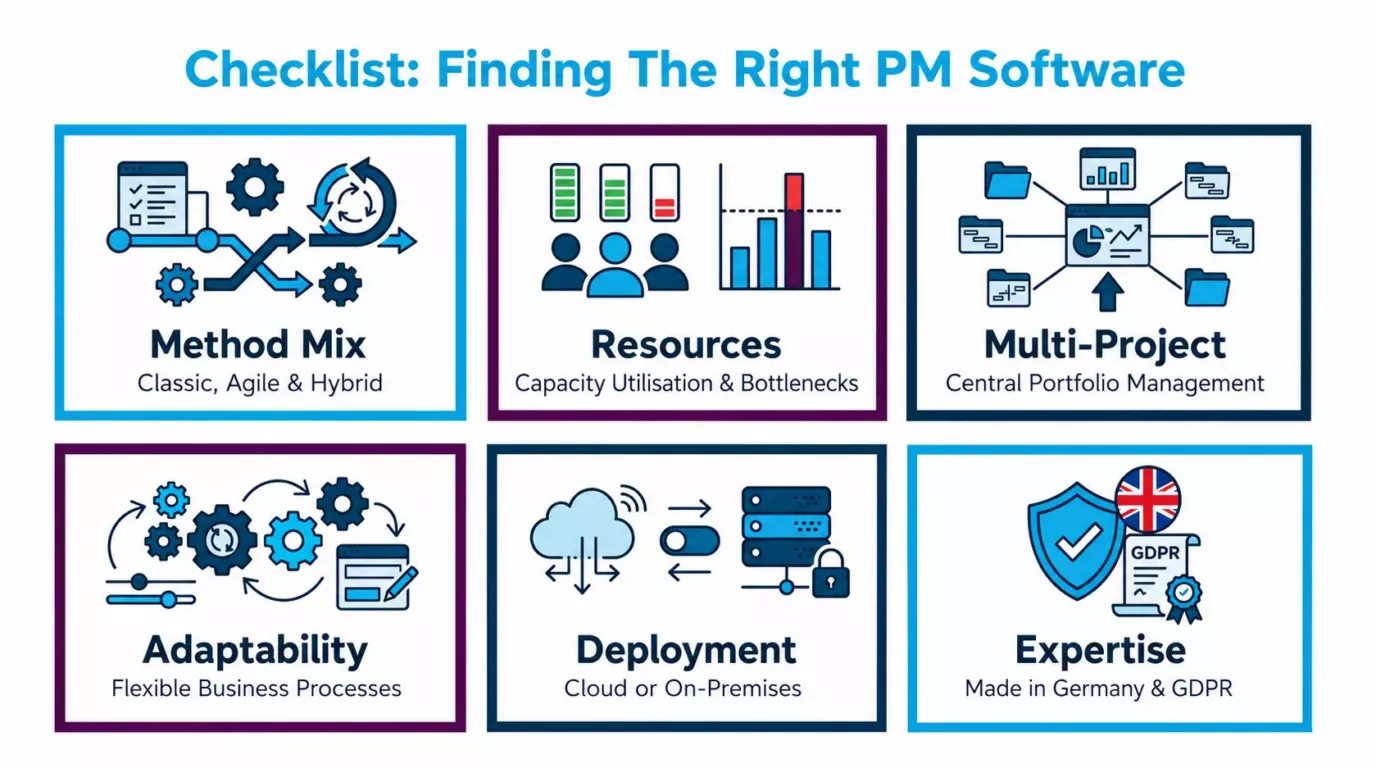
- Method Support: Check whether the software supports traditional, agile, and hybrid project management. Ideally, this should be done within a single system, without having to switch between different tools.
- Resource Planning: Look for cross-project resource planning with automatic capacity calculation and conflict detection, which identifies bottlenecks before they turn into scheduling issues.
- Multi-Project and Portfolio Management: Ensure that all projects can be managed and prioritized in a central overview, without having to manually compile data from various files.
- Adaptability: Assess whether the software can be adapted to existing business processes, rather than imposing rigid structures that force adjustments to daily workflows.
- Deployment Options: Determine whether the software is available both as a cloud/SaaS solution and as an on-premises installation, depending on your IT strategy, security requirements, and data protection regulations.
- Vendor Expertise: Prioritize providers with proven industry experience and a track record of long-term product development. “Made in Germany” stands for short lines of communication, GDPR compliance, and years of practical experience.
- Price Transparency and Trial Options: Choose providers who openly communicate transparent pricing models (e.g., a scalable SaaS model starting at a certain amount) and offer you the opportunity for a free evaluation. This allows you to ensure that the software performs well in everyday use. You can find details, for example, in PLANTA’s transparent pricing overview.
PLANTA Project meets all the requirements of software developed by experts to address real project management needs: hybrid project management, integrated resource planning, portfolio management, flexible customization, and availability in both cloud and on-premises environments, backed by over 45 years of development experience as software “Made in Germany” from Karlsruhe.
What Are Some Alternatives to Project Management Using Excel?
The market for project management software offers three basic categories of alternatives to Excel. Which one is right depends on the size of the company, the complexity of the project, and the level of control required. Not every alternative is suitable for every company, and not every tool that sounds better than Excel is the right fit for a given context.
1. Simple Task Management Tools
Simple task management tools focus on to-do lists, Kanban boards, and basic team collaboration. They replace Excel to-do lists with a digital, shared platform. Numerous cloud services on the market make it easy to get started with digital task management.
The strengths of these tools lie in their intuitive interface, quick setup, and visual task management via drag-and-drop. They are ideally suited for small teams of up to ten people managing individual, low-complexity projects without significant resource or budget management requirements.
2. Professional Project Management Software
Professional project management software offers comprehensive project planning, execution, and monitoring within a single integrated platform. It covers the entire project lifecycle, from initiation and resource planning to the final report. With dedicated project management software, teams work from a shared database rather than having to compile information from various files.
An overview of PLANTA Project’s key features:
- Multi-Project Management: Manage all projects in a single, centralized view, including dependencies and priorities.
- Resource Planning: Automatic workload overview for all employees across projects, with conflict detection.
- Cost and Budget Management: Real-time overview of planned and actual costs per project and portfolio.
- Simple Reporting: Dashboards and early warning systems for schedule, budget, and quality deviations.
- Flexible Deployment Options: Available as a cloud/SaaS solution or on-premises installation.
The ideal target audience consists of upper-mid-market companies and large corporations with three or more concurrent projects that require reliable management and transparency across all initiatives, particularly in industries such as pharmaceuticals, mechanical engineering, and electronics.
3. Hybrid Project Management Systems
Hybrid project management systems combine traditional and agile methods on a single platform. They enable the use of both waterfall and Scrum or Kanban elements within a single project or across multiple projects, tailored to the requirements of each project phase.
Conclusion on Project Management with Excel: It’s Possible, but It’s No Substitute for Real Project Management Software
Excel works as a starter solution for simple, manageable projects; there’s no question about that. However, it is not suitable as a viable foundation for professional project management in growing companies. The critical shortcomings are not minor issues that could be resolved with better templates or more discipline: the lack of real-time collaboration, the absence of integrated resource and portfolio management, and the inherent error-prone nature of manual data maintenance are systemic weaknesses. Professional PM software closes precisely these gaps, with centralized control, end-to-end automation, and real-time transparency.
Frequently Asked Questions about Project Management with Excel
Can You Manage Projects in Excel?
Basic project management is possible in Excel: task lists, schedules, and simple Gantt charts can be used to map out small projects. However, as soon as multiple projects are running simultaneously, teams grow, or resource planning and automation become necessary, Excel reaches its structural limits. For these requirements, we recommend using professional project management software.
What Are Some Well-Known Project Management Tools?
The market distinguishes between three categories: simple task management tools for small teams, professional PM software such as PLANTA Project for complex single- and multi-project management, and hybrid systems such as PLANTA Project and PLANTA Enterprise for companies with mixed methodological requirements. The right choice depends on project scope, team size, and management needs.
How Do I Create a Good Project Plan?
When Should You Switch from Excel to Project Management Software?